Showing posts with label Chrome. Show all posts

Saturday, May 21, 2011

Firefox Aurora and its New Multi-channel Approach

With its 5.0 Beta, Firefox has debuted a new feature designed to speed up its own development to counter Google Chrome's rapid release schedule. With it's new Aurora release Firefox allows users to easily switch between three different channels: Development which is the normal version of the software, Beta which includes new features which are still being tested; and Aurora which is the latest nightly build of Firefox which can be expected to be unstable but also full of interesting new features.

It's all credibly slick and cool. Just select About Firefox in the Help Menu which tells you your channel and click Change to select a new channel. You select your new channel and click on Apply and Update and Firefox installs a new version of itself and restarts.
But I have to wonder if this is the right approach for Firefox. As slick as Firefox's channel switcher is, I prefer Chrome's approach of having separate installs of the browser for different channels. With Chrome's Canary Build, you can have your cake and eat it too. One safe, always up to date browser and another separate browser with cutting edge, experimental technology which will occasionally crash. And one can have dozens of pages open in tabs and another can open to just one or to your start page.

Aurora on the by contrast feels like an all or nothing proposition. You can switch between channels easily within one install of the browser but what happens if the latest nightly Aurora build is unstable? Will there be a way to switch to a more stable channel without bringing up the About Firefox box? I hope so.

And I think that Firefox with its more powerful extensions can benefit even more by having two separate browser installations. It is fairly common for early Betas of Firefox to be incompatible with many extensions. Having a "stable" installation of Firefox with all your favorite extensions and a second "experimental" installation which runs alongside it would probably be something that most Firefox users would enjoy.

While I realize that I could probably set this up myself using Firefox's Profile Manager, that tool is on its way out. And in any case it's probably overkill for most users. It would be much easier to have a check box that says "Maintain Separate Aurora Installation" or something like that in the About Firefox box.

Monday, June 7, 2010

Like Chrome But Hate Google? Iron Can Help.

I've always been a big fan of Google's Chrome web browser but these days a lot of people are worried about Google's growing power and its implications for their privacy. But Chrome is so fast! And it's so much better than other browsers! It's something of a conundrum.

Enter Iron. Iron is a new web browser based on the same Chromium code which Chrome uses. As a result, Iron lacks some features like Google Update and address bar suggestions which most people love but which others deem to be a privacy risk. Iron's creators have gone even further and have removed Chrome functions like the Client-ID and error reporting and more. The point is to eliminate all behind the scenes contact between Google and your web browser. While this might seem a little paranoid to some, to others it might be just what the privacy doctor ordered.

Saturday, May 23, 2009

Google Chrome Hits Version 2.0, Sweet Spot

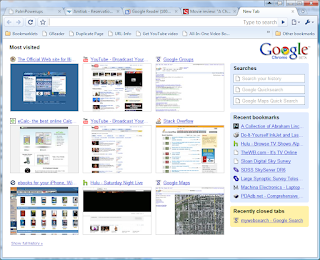
Engadget reports that Google's Chrome browser has hit version 2.0 and gives an overview of the new features. They seem especially excited by Chrome's new ability to allow users to remove embarrassing websites from the New Tab page. This doesn't seem like such a big deal to me—maybe I have no sense of shame.

I'm more excited by the new Full Screen mode. A lot of people think that Chrome with its speed and compact user interface is ideal for netbooks. I've always prefered Firefox on my netbook because of its full screen modes which hides the browser UI altogether, showing you just the web page. Chrome's implentation of Full Screen mode is not perfect. On Firefox I can hit the <ctrl>+l key to bring up Firefox's navigation bar to type URLs, search, and access the navigation buttons. Under Chrome however <ctrl>+l doesn't work in full screen mode. While this is disappointing, Chrome does still show the URLs of links when you move your mouse over them in full screen. Firefox on the other hand does not show URLs in full screen mode. I consider this to be an equitable trade.

Finally, Chrome's speed—it launches instantaneously on my Acer netbook—continues to trump Firefox by a wide margin. While I still prefer Firefox on my bigger, faster, not quite so mobile computers for it's tremendous variety of extensions, Chrome has hit the sweet spot for me in terms of usability and speed. It has earned a place as the default browser on my netbook.

Tuesday, February 17, 2009

Recovery.gov—Access Problems For The Government's New Website?

The Obama administration has finally pushed its stimulus bill through Congress and has a website for it up and running. Hooray for government transparency and change you can believe in. I was pretty eager to read the bill. Actually, I probably would have just skimmed it for a few minutes and gotten bored the way I did with the House version of the bill. But I was definitely interested in looking at it if for no reason than because it was available online. While Congress has been making the text of bills available in excruciating detail for years, as far as I know this was the first time that the president went to such pains to actually publicize and build websites for a single law. The website was actually live (empty but live) for at least a week before the stimulus bill passed.

So I eagerly went to the website today and was excited to see a polished, professional, and good looking website along with a link to full text of the stimulus bill. Awesome! Then I actually clicked on the link. Nothing. Apparently, JavaScript coders are also getting a stimulus package. I use NoScript to disable scripting on websites by default in Firefox. Most websites work just fine with Javascript turned off and given how common it is these days for malicious websites to download malware onto your computer, it just makes sense for me. But I guess I can trust the government right? It's not like a politician has ever lied to me.

So I enabled JavaScript for recovery.gov and it popped up a message telling me that I was leaving the recovery.gov server displaying the full text of the link which it is sending me to. Is this really necessary? After all, the full text of any link is displayed on a browser's status bar anyway—or at least it would be if somebody hadn't decided to hide the link behind a JavaScript pop up. Still I clicked through and was taken to a the white house website where the bill conveniently divided into five parts and available in available in either PDF or ASCII formats. Excellent! Then I actually clicked on something. Another pop up. So I enable JavaScript for whitehouse.gov and click again and nothing. Aaargh! So I try one more time. Taking note of URL and enable JavaScript gpo.gov (the Government Printing Office?) and click again and nothing.

I tried to access the website again with Google Chrome and Internet Explorer. I used a brand new computer where IE had JavaScript turned on and Chrome always has JavaScript enabled but I still got the same results. Maybe the government's servers are just overwhelmed by people trying to look at the stimulus bill but if that's not the case....Between these three browsers, I probably have at least 95% of all Internet users covered and I'm a bit worried. Sure, the Bush administration screwed up Afghanistan, Iraq, and Hurricane Katrina but I've just received some very disturbing evidence that the Obama administration can't even get a simple website right.

I really hope I missed something....

Update: Checking in on the website again, it looks like they changed things around a bit. You can now download the full stimulus bill, as signed by the president, in PDF format and actually looks pretty good. Yet another document for me to download and not read. You still have to go through the annoying pop ups but at least you can download it and look at it now. My faith in democracy is restored....

Friday, January 2, 2009

Chromium: For Those Who Like Their Chrome With Less Google

While Google's Chrome browser is a very nice, fast web browser some people are uneasy about the amount of power that Google has over your web experience. Enter Chromium, a web browser which is based on same Chromium source code which Google uses for Chrome but omits the Google Update program. This may help quell the fear that some people might have about Google while allowing them to enjoy Chrome's features.

Thursday, November 13, 2008

Chrome: Is This Your Father's Web Browser?

A couple of months ago I set up a computer for an older couple who had never used a computer before. It was an old laptop with busted hinge but it was in otherwise good condition and it was an easy matter of setting it up with an external monitor and wireless keyboard and mouse. Neither of them knew much about computers and they just wanted it for e-mail and web browsing—the same as most computer users these days.

When it came time to choose a web browser for the computer I wanted to steer them away from Internet Explorer. Besides being slow and bloated, IE is a magnet for hackers if for no other reason than the fact that it is installed on the vast majority of computers. So I installed Opera on the computer.

It seemed like a good choice at the time, Opera is small and fast—perfect for an old computer with only 512MB of RAM. Unfortunately, Yahoo! Mail didn't cooperate. Several days after setting up the computer, I began receiving calls about the a problem between Yahoo Mail and Opera. For some reason it kept redirecting Opera from its Inbox to the log-on page. I never figured out exactly why this was happening. So I installed Chrome—Google's then new browser—on the computer and the older couple has been happily using it for e-mail and web browsing ever since.

Chrome hasn't made much noise since the week when it was launched. A lot of geeks (myself included) downloaded it, complained about a lack of features and possible privacy problems, and quickly went back to Firefox. But from my perspective setting up computers for people—many of them older—who really know nothing about computers and don't care about cookie handling or security.

For these people, Chrome's shortcomings suddenly turn into strengths. Chrome was designed from the ground up to run javascript so temperamental web applications like Yahoo! Mail are more likely to run properly on it. Chrome runs in the background quietly updating itself through Google's Updater application even when it is supposed to be "closed." While more tech-savvy and paranoid people see this as a potential privacy risk, for people who neither know nor care about security or privacy issues, this is an invaluable feature since their web browser always has the latest updates and patches. While there is no way to control how javascript and cookies behave on a site by site basis, people who lack computer savvy won't know how to use these features anyway, so for them relying on Google to handle these potential threats makes sense. It all comes down to how much you trust Google—maybe you and I don't always trust Google but most people don't care one way of they other. For them Google's web browser is just another program that they run on their computer.

So for confused newbies, Chrome's lack of features and minimalist interface are an advantage. Ironically enough, Chrome's name comes from the term used by web developers for the buttons, menus, and other widgets that constitute the browser's interface. But Chrome has very little "chrome" compared to other web browsers; just front, back, and reload buttons, a combination address/search bar, and a couple of hidden menus which are easy to ignore. It even tucks its tabs into its title bar which further reduces clutter. And while Google has talked about producing add-ons for Chrome, there are currently none available. There are no toolbars or extensions for Chrome. But then again, too many extensions can slow Firefox down and toolbars are frequently more trouble than they are worth for Internet Explorer users.

So if you are a tech-savvy nerd who has been wondering what Google was thinking when they put out Chrome, maybe they were thinking about your mom and dad.

Sunday, November 9, 2008

Googling Usenet

This is the sort of post which I must admit is basically just something I'm writing down so I won't forget about it. It's so nice that blogging allows me to treat the Internet as my own personal napkin.

If there is one program that I use more than any other on my computer, it's Agent. Well, I probably use a web browser, any web browser more than anything else just like everyone else. But after a web browser, I use Agent for both e-mail and for reading Usenet newsgroups. Now Agent is a pretty complex program and it has many little tricks which many people never use because they don't realize that it can do them.

One such trick is the ability to launch your web browser and retrieve a Usenet post from Google's Usenet archive. This can be useful for older topics where you want to see the whole discussion as it happened.

Setting it up is a five step process:

  1. Under the Tools | Options menu item choose URL and MIME Settings | URL Types and select news:Usenet News as your URL type.

  2. Check the following items:

    • Enable highlighting and launching

    • Remove URL prefix when launching

    • Use custom settings (below)

  3. Click Browse and point Agent to your web browser. Not every web browser works nicely with Agent to launch itself and go exactly where Agent tells it to go. Firefox works perfectly, Chrome does not. I haven't tried this trick with recent versions of Opera or Internet Explorer but based on previous experience, I would expect them to work.
  4. Check Use DDE. Use the message, http://groups.google.com/groups?selm="%1"
  5. Fill in the other DDE settings:

    • Application: Firefox (or whatever the name of the browser happens to be)

    • Topic: WWW_OpenURL

    • Method: Request

From here on, every time you double-click on the Message-ID of a Usenet post in Agent, Firefox will open a Google search for that message and go directly to it.

This kind of Google integration has been available in Agent for years and it's a good thing because Google's own Usenet newsreader is pretty bad as is its search function. Luckily, there are a number of tricks which can be used for searching Google for old Usenet topics. One of the nicest, most overlooked features of Firefox is its Keywords feature which allows you to save a custom search template and then invoke it directly from Firefox's address bar. I have a number of keyword searches for Google's newsgroup archive.

Both of the searches below can be bookmarked and used to search for a specific Message-ID. Basically, they run the above trick I use with Agent directly from Firefox's address bar.
  • http://groups.google.com/groups?selm=%s
  • http://groups.google.com/groups?as_umsgid=%s
The following search is a little more practical:
  • http://groups.google.com/groups/search?safe=off&btnG=Search&sitesearch=groups.google.com&q=%s
It searches Google's Usenet archive for any term just like a search from Google's search box. Adding the following term &as_drrb=b to that causes a snazzy set of drop down boxes to appear which allow you to narrow your search to a specific set of dates
  • http://groups.google.com/groups/search?safe=off&btnG=Search&sitesearch=groups.google.com&q=%s&as_drrb=b
Google's newsgroup URL can be customized with a wide variety of terms for saving a custom search. A full list of these terms is here.

Wednesday, October 1, 2008

Firefox Extensions: An Embarrassment of Riches

One of the great things about the Firefox web browser is the rich mosaic of extensions which are available for it. I recently excitedly installed an extension called Hyperwords which promises to pop up a wealth of references from any word which you highlight. It looked awesome but once I restarted Firefox and had a chance to play with it, I realized that I already have several extensions which already do much the same thing. CoolPreviews does the same thing on a smaller scale—it only pops up results from Google, Google Images, The Free Dictionary, and Wikipedia while the list of references is Hyperwords pops up is too long for me to list. But CoolPreviews also pops up a minimalist window on top of my current one with a preview of any url without opening seperate page. This is a huge time saver for me which allows me to go through web pages more quickly but it's still a duplication of functionality.

And it's not the only one. Ubiquity is also an extension which I installed enthusiastically and it too replicates a lot of the functionality of Hyperwords. But it is also one of the most ambitious extensions ever created for Firefox. Essentially a command line for the web, Ubiquity can bring up everything from maps to the weather and email, twitter, slice, and dice them in many different ways. It's tremendously fun to play with and useful and it promises to grow more sophisticated as it continues to develop.

But in the meantime, I have a growing list of extensions (twenty four in all) and Firefox no longer loads instantaneously as it did when I first installed it. In fact, it actually takes about thirty seconds to start which doesn't seem like a lot but it means that Chrome, which is Google's web browser, loads instantaneously but it lacks the powerful extensions to which I've become accustomed to on Firefox. It's an interesting conumdrum, speed versus power. It's compelling enough that I often run Firefox and Chrome side by side. But that's life on the modern Internet I guess, tons and tons of information and tons and tons of ways to use it and manipulate.