Showing posts with label T-Mobile G1. Show all posts

Wednesday, November 11, 2009

A Cell Carrier Goes Underground

One of the most frustrating things about a long commute can be going into a subway and losing your phone signal. So an ad like this one can be rather hearkening:

Photobucket

I have T-Mobile and my G1 has been getting better coverage on the Blue Line subway in recent weeks. Unfortunately, this improved coverage doesn't help as much for data usage. T-Mobile's 3G coverage is already relatively slow to begin with and my G1 tends to drop to EDGE speeds in a subway so checking email and web browsing can be slow. On the other hand my Palm Pre tends to lose both voice and data in the subway so T-Mobile is ahead of the game here.

Friday, October 16, 2009

In Praise of Hard Buttons

SAN FRANCISCO - OCTOBER 21:  The new T-Mobile ...Image by Getty Images via Daylife

LAS VEGAS - JANUARY 08:  A new Palm Pre smartp...Image by Getty Images via Daylife

Winter hasn't exactly come early to Chicago but it is unseasonably cold right now—cold enough that I've had to break out a jacket and gloves. This kind of leaves me in a bind gadgetwise. I still love my Palm Pre and am satisfied with its little sliding keyboard but the cold weather makes it less useful when I'm out in the cold. While the Pre is a slider phone a perfectly usable little keyboard, when the slider is closed the Pre is basically all screen with a single button that does only one thing. Other than turning it on and off and changing the volume, all other interaction with the Pre is through its screen. Normally this is no problem—in fact it's normally quite enjoyable. But when you are wearing gloves suddenly it becomes impossible to interact with the Pre.

Now contrast that to my older T-Mobile G1. The most recent firmware update gave this phone a new lease on life by making it fast enough to be usable again. And now the cold weather is is making it a lot more relevant for me because it has something that the Pre lacks—real hardware buttons. The G1's trackball is very responsive and allows me to interact with the phone quickly and efficiently. The home button allows me to get to the G1's "desktop" and access my shortcuts. And finally, the back button helps me get around the phone even faster.

I've always felt that the G1 was something of a evolutionary odd duck. Not as pretty as the iPhone or as elegant as the Pre but an interesting phone because it shows the potential of Android as a phone OS. With the release of the Pre and its webOS operating system, suddenly the potential of Android doesn't fascinate me aas much as it used to. But the ability to scroll through a bus tracker web site on a cold day without having to take off my gloves doesn't need to be fascinating, it just needs to be quick and efficient.
Reblog this post [with Zemanta]

Tuesday, October 6, 2009

My New Old Phone

Ever since upgrading to my Palm Pre, I haven't had much use for my T-Mobile G1. Sure, I kept it because sometimes it's useful to have a second phone but for the most part my G1 has been semi-retired. But a funny thing happened last week. Google pushed out an update to the G1's Android operating system.

I was pleasantly surprised as a rumor had been going around the interwebs that the G1's hardware was too puny for the latest Android update. More importantly, the update seems to have fixed the G1's number one problem. It has suddenly become a much faster device. It's not as fast as my Pre is on its best days but it's definitely competitive.

This is a pretty exciting development. The G1's problems had soured me on Android but now with its latest update, I'm starting to de-sour.

Sunday, June 28, 2009

The Palm Pre's Missing Menu Key and Why the Center Button Should Be a Trackball

I've gotten used to the Palm Pre's keyboard pretty quickly but the one thing that I do miss the most from the Treo 680 and T-Mobile G1 is the "Menu" key. There are several ways of accessing menus on the Pre. You can tap on the upper left hand corner. And in a fairly ingenious use of the Pre's gesture area, you can tap and hold the gesture area and use it to select keyboard shortcuts like "Cut," "Copy," and "Paste." But these workarounds are just that, workarounds. Tapping on the upper left hand corner is not as easy as just hitting a dedicated Menu key.

And it's not like there is not enough room on the keyboard for one more key. The area which slides out to reveal the Pre's keyboard is about the same size as Treo 680's keyboard and has plenty of empty space which holds no keys. A single key would have gone a long way towards making the Pre's kebyboard a lot more comfortable.

Now about the center button. As far as buttons go, it's a pretty cool one. It lights up when you touch the gesture area and it makes it moves your open applications into card mode so you can easily switch between them—like Microsoft's "alt+tab" key combination. But from another perspective, it's pretty useless. Card mode can be invoked by merely swiping up from the gesture area which eliminates the need for the center button. And while the visual cue of the center button lighting up is useful, you don't really need a button for that. In fact depending on where you touch gesture area, a circle immediately to the left or right of the center button lights up at the same time it does.

What this all adds up to is the idea that the center button in its current form is not really needed for operating the Pre. So other than the fact that it looks cool, why is it there? I can't think of a reason. Now if it were possible to control the position of the cursor on the screen the way the trackball on the G1 does, then the center button would be truly useful. While the Pre does have a "trackball mode" where swipes on the screen can control the position of the cursor while the Pre's orange button is held down, this method takes practice to learn and master while a physical trackball would more intuitive.

I've also seen suggestions online about having the center button light up with alarms. I like this idea. Treos have always had blinking LEDs and since the Pre's center button can light up anyway, it should be fairly easy to replicate this functionality.

Tuesday, June 23, 2009

Keyboards Compared—Treo, G1, and Pre

Size isn't everything. That's what we tell ourselves and to a certain extent it's true. At least it's true in the case of smartphones. I've compared the Treo 680's keyboard to that of the T-Mobile G1 before and now that I am migrating to the Pre, I have another comparison to make.

I am making more typos with the Pre but it's more than just a matter of the keyboard. Most of the typos that I make with the Pre are on web forums where the font can sometimes become uncomfortably small and hard to read for my aging eyes. While I can easily zoom in and out to compensate, when I do this I can no longer see everything I am writing.

Still the small keyboard is a little harder to type on than my old 680 keyboard was. Both the G1 and the Pre have a problem with causing fatigue during long writing sessions but for different reasons. While the G1's big keyboard is fairly comfortable to type on at first, the G1 itself doesn't feel quite right in my hand while I'm typing and that leads to fatigue. With the Pre the keyboard's small size is the culprit for my fatigue. So of the three the oldest machine, the 680, is the best for thumbtyping. It's smooth, domed keys feel better than the G1's flat keys and the Pre's sticky keys.

The 680's keyboard is also easier to see with their bright backlighting. Of all the phones I've played with, the Treo 650/680 had the best backlighting. The G1's wimpy backlight can actually impair its visibility in certain lighting conditions as it turns the keyboard letters a light gray color which contrasts poorly with its silvery keys. The Palm Pre represents a nice compromise between these two extremes. The Pre's backlighting is very subtle and almost impossible to see under most lighting conditions but under total darkness it works perfectly. While this may not seem like a huge achievement, it's a huge improvement coming from the G1. And even coming from the 680 the visibility of the Pre's keyboard is good as its bright white letters and orange numbers pop nicely when viewed against their black background.

One of the problems with the G1 ane Pre's sliding keyboards is the fact that they are not always available. They have to be opened in order to be used. With the G1 it's a struggle to open with one hand, it is inherently a two-handed device. The Pre by contrast slides open quite easily with one hand—you just push your thumb against the screen. As a result, one handed use—which was one of my favorite features of the Treo—is very easy with the Pre. One-handed of the G1 nearly impossible although the onscreen keyboard which was added in the Cupcake update helps in this regard. But for me virtual keyboards are more difficult and uncomfortable to use than physical ones so the G1 is ultimately a more cumbersome device for me.

Obi-Wan KenobiImage via Wikipedia

The Pre by contrast is much more elegant and this is especially true in contrast to the G1 and the 680 both of which very utilitarian in their design. It's system of gestures works very naturally and fluidly and even helps enhance the keyboard by acting as a virtual menu key for using the Cut, Copy, and Paste shortcuts. When I handle the Pre, I can't help but think about Obi-Wan Kenobi's line in Star Wars about his light saber, "a more elegant weapon for a more civilized age." I suppose this sort of statement makes me a huge drooling fanboy but gadgets are as much about the way they make their users feel as they are about helping them get work done. When I used my 680, I was frustrated by its bugs. When I used the G1, I was frustrated by its sluggishness. With the Pre, I just flat out enjoy using the device and its bugs don't bother me as much as the bugs on the 680 and the G1 did.
Reblog this post [with Zemanta]

Monday, June 15, 2009

Applications Give Android An Edge Over webOS For Now

While I love my new Palm Pre there is a huge elephant in the room—actually two elephants, the iPhone and Android. Both of these platforms have large (freakin' huge in the case of the iPhone) catalogs of third-party applications and Android has one which really stands out for me—Google Maps. Google Maps is pretty ubiquitous on mobile phones these days with even cheap dumb phones having a version available to them. But versions vary from phone to phone and the one on the Palm Pre is lovely and easy to use. But on an Android phone like my T-Mobile G1, Google Maps is really special with desktop-like features like Street View integrated into the interface (I think that the iPhone version of Google Maps also has this feature). The Pre's version of Google Maps is comparatively simpler with a sleeker interface but no street view. And in the meantime, Google has just updated the Android version of Google Maps with new features. Every version of Google Maps has driving directions but the new Android version adds public transportation and walking directions—a feature which I love on the desktop. And Google has released it through the Android Market so there is no need to wait months on end for an over the air update as was the case with the Cupcake update.

Google Maps almost makes me want to choose my G1 over the Pre all by itself. Almost. At the end of the day the Pre is still faster than the G1 by a quit a bit and its GPS feels more accurate if for no other reason than because it can get an accurate fix more quickly.

Still, if it were available on faster hardware it would be hard to recommend Palm's webOS over Google's Android at this point. Now that Documents to Go has arrived on Android, editing documents—a traditional strength of Palm devices—is poised to become a strength of Android. A version of Documents to Go for the Palm Pre has been promised but has not arrived yet.

While there is still a lot of promise in webOS for third party applications, without an available Software Development Kit, it's hard for people to actually create them. Right now most webOS development is taking the form of trying to hack the operating system and applications. Worse, it seems that Palm isn't supporting these hackers for fear of offending Sprint. But without an official SDK underground hacking is the only game in town for developers who aren't traditional friends of Palm like MotionApps and Dataviz. The fact that to date there are only thirty applications in the Pre's App Catalog at a time when there are thousands of apps in the Android Market and tens of thousands of apps in the iPhone App Store, only serves to underline how far Palm has to go to catch up the big boys.

Despite some hiccups Palm has done very well in rolling out the Palm Pre and the new webOS which powers it. MotionApps Classic application goes a long way to helping plug the gaps in Palm's App Catalog but it's not enough. Palm needs to put out an offcial SDK now.

Saturday, June 13, 2009

Cut and Paste—webOS vs Classic PalmOS

One of the big albatrosses around the neck of the iPhone was it's lack of support, until recently, of copy and paste functions. So naturally Palm has trumpeted loudly that the new Palm Pre supports copy and paste from day one. And it does but there's a problem—actually two problems. Palm's copy and paste doesn't work everywhere and it doesn't work as well as it did under the older PalmOS operating system.

In order to copy and paste text in the Palm Pre's webOS, you tap to place the cursor at the beginning of the block of text you want to copy, hold down the shift key, and drag your finger horizontally to choose the text you intend to copy. Then you choose "Edit" from the drop down menu and select ." Palm has even created a little shortcut where you can tap and hold your finger in the gesture area and it acts like an unlabeled Menu key—the Pre will cut, copy, or paste whenever you press the "x," "c," or "v" keys on the keyboard. Pretty slick right? Actually, in the old PalmOS it was even easier to copy and paste. You could simply drag your finger across the text you wanted to copy and select "Cut," "Copy," or "Paste" from the edit menu which is even easier and more intuitive than with the Pre's webOS. In fact, I was so used to this way of doing things from my PalmOS devices that at first the webOS felt more awkward because I was trying to drag my finger across the text I wanted to copy when I was supposed to first place the cursor and drag my finger horizontally in the direction that I wanted the selction to move. This feels confusing and unintuitive, the older PalmOS way of doing things feels simpler to me.

Of course the older PalmOS was designed for PDAs and smartphones with different types of touchscreens than webOS. PalmOS was optimized for use with a stylus while webOS is designed for use with a finger. Could this be the reason for the Pre's Cut and Paste method? If only there were a way to compare these two methods side by side. There is—MotionApps' Classic emulator allows us to run PalmOS apps side by side with webOS apps. So I loaded the webOS Memos application and PsMemo within Classic. And it turns out that it's just as easy and intuitive to use the PalmOS Copy and Paste method in an emulated PalmOS app on my Palm Pre as it is on a Treo or a Palm TX.

I suppose that it doesn't make much difference one way or the other—the Palm Pre cuts, copies, and pastes just fine. It's just interesting how in the march of progress we sometimes take a tiny step back even as we move ahead.

One thing that does make a significant difference to me is the fact that webOS' copy and paste only works in text fields. As a result, you can't copy a block of text from your browser and paste it into a memo or anywhere else. The PalmOS web browser, primitive as it was, has always been able to do this and it should be simple to implement. Of course it this is so simple why did it take Apple, many times larger and richer than Palm, so long to implement it in the iPhone? Even Android, which is made by Google and had copy and paste on day one, took over a year to implement it in its browser. So perhaps I should cut Palm some slack.

Nevetheless, this does have a practical downside. I have secured my home wifi hotspot with a long 63-character wifi password. It's easy for me to put this key in a text file on a flash drive copy and paste it into any laptop that connects to my home network. It's also easy to put it into a memo and copy and paste it onto my Palm TX. With my T-Mobile G1 it was a little harder. First I had to find an Android application that could read text files and copy and paste. Once I had done that, it was easy to copy a text file to the G1 and copy and paste the wifi key.

With the Palm Pre it was even more of a challenge. While I had imported my old PIM data into Classic, including a memo with my wifi key; Classic sadly does not appear to support copying and pasting data between PalmOS and webOS applications. And neither does the Pre's built-in document viewer, the text file option was out. After trying several solutions, I concluded that the easiest solution was to email the wifi key to myself and open the email in my Palm Pre. But since the email application only displays the email I wasn't out of the woods yet. I had to tap reply in order to place the text of the email into a text field so I could copy and paste the key. Once I did that, I finally had access to my wifi hotspot on the Pre. That's not exactly what I'd call elegant.

Thursday, June 11, 2009

Little Touchscreen Tramp...

I tried to resist the urge to buy a Palm Pre. Really I did. I had decided to at least wait until there was an unlocked GSM model. But the little beauty seduced me with its smooth curves, speedy processor, and beautiful operating system. It's not entirely my fault; my steady, the T-Mobile G1 and I have always had a complicated relationship. One minute she was quirky and fun, the next minute she was slow and weird. And there was the Palm Pre, beautiful and fast. I never had a chance....

Sunday, June 7, 2009

Palm Pre Browser Races iPhone and G1

Slashdot's discussion of the Pre had a pretty interesting link. Precentral posted a video the Palm Pre's browser in action and side by side with the iPhone and T-Mobile G1's browsers.

Saturday, June 6, 2009

Google Reader Working on Android Browser and the Case of the Disappearing Web Pages

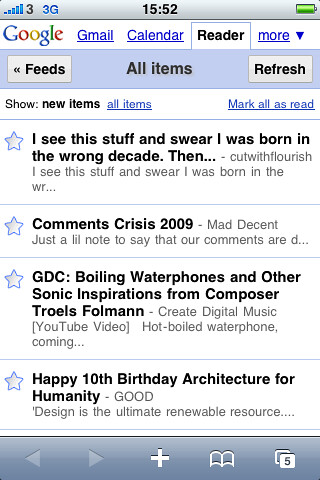
I've always been a big fan of Google Reader for reading blogs both on my computers and my mobile devices. Google created a very nice mobile version of Google Reader for the iPhone's browser a couple of years ago. This is the Google Reader you encounter when you use Android's browser to go to Google Reader. Unfortunately, this version of Google Reader has never worked well with my T-Mobile G1. It always seemed to leave read items marked as unread. As a result, it would refresh and present you with the exact same items that you had already read. This unfortunate bug made Google Reader unusable on the G1. So for reading blogs on the G1 I would use an older version of Google Reader. This version of GReader was nice and fast but it was clearly made for dumb phones and older devices like my old PalmOS Treos and Palm TX.

I decided to try the newer mobile GReader again after my G1 received the over the air update to a new version of Android (yes, this another post about Cupcake). I'm not sure if it was the new OS or if Google just fixed it while I was away but the new GReader works very well on my G1 now. It is fast and it is available from a drop down menu on the web browser's default Google home page. Unlike the older reader which links original posts to a mobile phone optomized page, the newer reader links to the original full post. With a more modern browser like the one in the G1 this is more appropriate and thanks to the Cupcake update it handles full web pages better than ever. So it looks like one longstanding pet peeve I had with my G1 has been fixed.

But another problem may have emerged. While I was waiting on line to play with the Palm Pre this morning, I was playing with my G1 with several web pages open in the browser. I was given a demo model of the Pre to play with and decided to compare the two phone's web browsers. But when I opened up my G1's browser, the only page open was the default Google home page. All the other pages had mysteriously disappeared! This has happened again at least once today and I have no idea why....

Fondling the Palm Pre

I took a trip a Sprint store in downtown Chicago today for the express purpose of playing around with the Palm Pre. I was actually tempted to buy it right there and then but an hour or so of playing around with the Pre help cool my ardor. (Does this word mean what I think it means?) Which is not to say that I didn't like the Pre, only that I don't think its necessarily worth switching carriers and giving up my T-Mobile G1.

I arrived at the store at about 9AM and there was a line of about 20 people ahead of me. I had visited the store the day before and been told by a clerk that they had 32 Pres to sell and two demo units. So I was in time. A clerk offered me a demo unit to play with and I snapped a picture to test the camera. I was immediately impressed. The picture looked great and I snapped an identical picture with my G1 for comparison purposes. The picture quality of the two phones seemed roughly comparable. I thought that the Pre took a better picture but it's hard to tell on a three inch screen. What I really wanted to do was email the Pre's picture to myself so I could compare them directly. Alas, the email on the demo unit wasn't set up so I couldn't do this, grrr.

But the Pre I could still see the strength of the Pre's camera. My G1 takes good pictures when it has good lighting but the shutter speed is very slow. I'll often move it too early and ruin a picture. But the Pre I demoed had no such problem. It snapped the picture immediately. Programs on the Pre launch quickly, more quickly than they do on my G1. Unfortunately, the Pre I used was prone to strange and sudden periods of lagginess especially when trying to use the gestures. The Sprint staff insisted that this was due to fact thaty the demo unit was a month old and not yet fully baked. They insisted that the retail units had fully up to date software that the demo unit lacked. I'll take their word for it but it seems strange. Surely Sprint or Palm could have pushed out an over the air update to the demo units the night before to make sure they would perform like a brand new unit. After all, this was presumably an important day for both Palm and Sprint and you would think that they would do everything in their power to see that in store demos went off without a hitch. Oh well.

One thing that the Pre did very well was rotate the screen. Every time that I've played with an iPhone or iPod Touch it showed a small but noticeable delay when it rotated screen from portrait to landscape mode and vice versa. My G1 only recently got this ability and when it rotates the screen, it is even slower. But with the Pre screen rotation was instantaneous. This is clearly a fast little machine. The card view worked perfectly and felt very natural.

The Pre itself is quite beautiful. It felt good in my had and curves gently when open to hug the contours of my head when I hold it up to my ear. Unfortunately, the shiny, glossy surface is a fingerprint magnet.

As far as the gestures go, the most natural ones are the back swipe and the swipe up gesture which brings on the wave bar and launcher. They were very smooth and even fun to do—most of the time. Sometimes the wave would get stuck in the middle of the screen. Sometimes tapping on the launcher button would launch the phone application and vice versa. I also had trouble pulling off a lot of the other gestures. The double tap to zoom in on part of a web page tended to work perfectly but the pinch and squeeze to zoom in or out was flakey and unpredictable. Again the Sprint staff insisted that this was the fault of half-baked demo software and that the retail phones would behave properly. They were certainly helpful and patient with customers who were actually ready to buy, making sure that they didn't leave the store unless their phone worked. But they were hampered in that they couldn't just open a retail and use the phone unless a customer was ready to buy it.

I suppose from Sprint's perspective my complaints don't matter since by my own admission, I wasn't ready to buy the phone. And indeed, I can't even say that they've lost me as a customer. I was impressed enough by what I saw that I'll probably go back in a couple of weeks after the hype has died down and see if they have a fully baked demo unit to play with. But I certainly didn't fall in love with the Pre and buy it on the spot. Of course there were people in line behind me who were ready to buy it anyway....

The Pre launch reminds me of a failed television show called "Kitchen Confidential." The pilot of that show featured a brilliant chef at a restaurant whose opening night goes disastrously. But the food is delicious and the local food critic gives the place a thumbs up—after noting that they have to get their house in order to become a truly great restaurant. Right now Sprint and Palm respectively are Nolita and Jack Bourdain—they have a great product but they still need to get their act together to sell it.


In any case my plan remains the same. I'll wait for an unlocked GSM version to come out before I buy the Pre. I bought my G1 mostly because my Treo 680 was becoming too unstable and I hated the browser and hated having to hard reset it and reinstall my programs to get it to run properly. (The 680 is actually a pretty efficient PDA when it's relieved of its phone and Internet duties.) While my G1 can be annoying at times, it can get laggy and I sometimes have to reset it in order to get it to behave but for the most part, it's still going strong and I enjoy using it. I'm in the middle of a two year contract. I can afford to wait....

Friday, June 5, 2009

"Find on page" Makes Getting Around Android Browser Easier

The temptation of the upcoming Palm Pre notwithstanding, I am very happy with my T-Mobile G1 since the recent "Cupcake" update. One new feature which I've begun to take advantage of is the "Find on page" command in the web browser which works very nicely with the new virtual keyboard. Although buried under the "More" option in the browser's menu Find on page helps you get around web pages more quickly.

Here's an example of how:

I tend to use Chicago's public transportation system a lot and one of the nice things about it is the CTA Bus Tracker which allows me to access real time information on bus arrival times. Since each bus route on the bus tracker page has its own unique route number, selecting Find in page and typing just two digits, allows me to get to a the bus route I'm looking for faster than I could if I just scrolled the page. So by making my navigation around its browser easier, Android's new improvements also make it easier for me to navigate around my home town.

Daley Plaza in Chicago


Palm Pre Almost Here

I guess a picture is worth a 1000 words. After months of hype, the Palm Pre will finally be released tomorrow and my feelings are mixed. My plan is (was?) to wait six months to a year for an unlocked GSM version. But every time my T-Mobile G1 acts up a bit I wonder if I should make the jump. Even though I love my Android phone, the fact remains that it still hasn't replaced my Palm TX as a PDA—Palm's old PIM software and third party apps are just so easy and familiar that it's hard to find Android apps to truly replace them. The Pre as Palm's latest and greatest could be the device I've been waiting for; it promises to be even more web savvy than my G1 and the Classic emulator would allow me to run my old PalmOS applications, the best of both worlds. And it promises to be compatible with iTunes which would give me a nice, big screen for those movies I carry on my iPod but never watch because its screen is too small....

While I'm eager to hold the Pre in my hands and actually play with it, I'm dreading the prospect of actually going through another upgrade. And then there's the prospect of switching carriers. I'm pretty happy with T-Mobile. They have good coverage and good 3G service here in Chicago. Sprint on the other hand had very bad coverage a few years ago and I have no idea if they've improved. For me Sprint really is the chink in the Palm Pre's armor.

I'll probably stick to my plan for now. I'll go and check the Pre out but I'm not planning to buy it. My G1 is very good for now and I'm still discovering new features since the Cupcake update.

Cupcake's New Bookmarks and Some Complaints

I just wanted to write up a quick post pointing out that the updated browser in the Cupcake Android for the T-Mobile G1 has one noteworthy improvement (besides enabling copy and paste). The Bookmarks menu now has three tabs and includes a list of Most Visited websites and a History tab. Before the update, History was a seperate menu item. Now it has been folded into the Bookmarks menu and is organized with submenus for items from "Yesterday," "5 days ago," "1 month ago," and "Before 1 month ago." Each website has a handy star which you can tap to turn it into a Bookmark. The Most Visited tab has these stars as well. This is a very welcome improvement over the old Bookmarks and History menu items.


The GMail application has also been subtly improved with little checkmarks that allow you to select multiple items for tasks like deleting spam. Unfortunately, GMail is actually a bit slower now than it was before the update. In fact despite Cupcake's improvments, my G1 phone is still relatively slow at times. It's not overwhelmingly slow but does slow down nevertheless. 

Another disappointment? Twidget, the little widget for displaying Twitter updates. I really like this little widget at first but after about 24 hours it started crashing repeatedly and I had to uninstall it. This is a shame, I hope it gets fixed soon because it was a nice little app.

Thursday, June 4, 2009

Cupcake's Camera and Widget Improvements

After a few days with the Cupcake update, I'm still discovering new things on my T-Mobile G1. The camera software for example has improved a bit. It hasn't crashed on me since the update which is a good thing considering how unstable it was before. It has also improved the interface by adding a camera icon which acts as a shutter switch for taking pictures. As with the physical camera button, I've found that holding until the camera snaps gives better results than just tapping it since it compensates for the G1's slow shutter speed.

A second icon shows a thumbnail of the most recent picture which has been taken with the camera. Tapping on it leads to a full screen picture overlaid with icons for managing pictures. In other words, it's a simple picture viewer. You can flip through pictures, enlarge them, set them as wallpaper or contact icons, share, and delete them. Menu options include rotation and cropping. Some of these options were already available in the original camera app but they are now better organized and easier to use.


One thing that wasn't available before was the Camcorder application which is exactly what the name implies—a video recording app. I haven't had chance to play around with it but it's nice to know it's there.

I also noticed that the naming convention for pictures taken by the camera has changed. Instead of naming each picture with string of numbers that begins with "124" on my phone, it now names them with a number that is made up of the date and time (down to the second) on the picture was taken.


Another addition that Cupcake brings to Android is better support for widgets that sit on your desktop. As a result, there is finally something interesting besides clocks and search boxes to put on the desktop. I find that the Weather Channel and Twidget Lite (for Twitter) widgets are nice for at a glance information. Of course these widgets do take up a lot of space. It's a good thing Android has a three screen desktop.

Monday, June 1, 2009

I Can Sync My Phone to iTunes? Who Knew?

Lifehacker and Boy Genius Report both point out that the Palm Pre's claimed ability to sync with iTunes is not unique. Apparently there are utilities for both the Mac and PC which allow any phone to sync with iTunes. That's certainly news to me—good news, but news nonetheless.

Saturday, May 30, 2009

Finally Got Cupcake

T-Mobile G1 (HTC Dream)Image by Aaronage via Flickr

My T-Mobile G1 finally got the over the air update from T-Mobile about an hour ago today. The changes are subtle but welcome, prettier icons and refined colors which nice use of shading and 3D effects—particularly in the notification and launcher drawers. The locked screen now displays the usual carrier, time, and date information on top of your wallpaper instead of over a black background. In the phone application, the Call log, Contacts, and Favorites items look a little better and are slightly better organized. Adding and editing contacts has always been fairly clunky on the G1 and the Edit dialog box addresses this problem by adding plus and minus buttons which allow you to quickly add and remove information which was previously buried under sub-menus.

The most noticeable additions would seem to be the virtual keyboard and voice search. The virtual keyboard works about as well as you would expect, which is to say not particularly well but it's nice to have it for quickly entering a few characters without opening the G1's physical keyboard. Voice search has mixed results at best, a search for "palm pre" was interpreted as "palm tree" and "cancrete" while searches for "t-mobile" and "sprint" were interpreted correctly.

One nice improvement is the improved use of the G1's accelerometer. Before, the only way to get the G1 to switch from portrait to landscape mode was by opening the keyboard. The web browser also had a menu item for switching the orientation. Now, with Cupcake, there is a global system setting which allows the G1 to flip its screen orientation automatically in most applications when you physically rotate the phone. This is great for the web browser but does not work with the desktop or the dialer (it does however work when editing contacts). While the automatic orientation switching is a fraction of a second slower than opening the keyboard, it is far more convenient.

It's still too soon to say if this new system software makes the G1 any faster or more stable but the improvements it brings are definitely welcome and make the T-Mobile G1 a better phone.

Update: I just discovered another great feature brought by the Cupcake update. The browser has now enabled copy and paste. Hit the "Menu" key and select "More." Then tap on "Select text." Highlight the text you want to copy and it will automatically be copied to the clipboard. Outstanding!
Reblog this post [with Zemanta]

Twitter

robertocastillo's shared items

My Blog List