Showing posts with label mobile computing. Show all posts

Sunday, November 7, 2010

Palm Drops Classic, Why It Matters.

Two weeks ago MotionApps, the developers of the Classic PalmOS emulator for webOS, announced that they were discontinuing Classic due to a dispute with Palm:

We are sad to announce that Palm has removed Classic’s ROM from the new webOS 2.0 device ROM which will result in Classic not working if utilized with Palm’s new webOS 2.0.

This is contrary to our agreement with Palm and was done without our approval or consent. Based on this action, MotionApps will immediately stop selling Classic. However, as a courtesy to our clients, we will continue to support existing Classic customers on webOS 1.x for the immediate future.

It's certainly a disappointing development for users of old school PalmOS apps like myself. But does it really matter? The truth is that I already have webOS replacements for most of my PalmOS apps. But a lot of these webOS apps are inferior to their PalmOS counterparts. Additionally, there are many PalmOS apps which still do not have webOS equivalents. And a lot of the PalmOS apps which have transitioned to webOS are still not ready for prime time. Finally, a lot of developers who made popular PalmOS apps are simply not interested in developing for webOS because its development tools are not mature enough yet.

While Palm has worked hard to foster developer interest, they are facing an uphill battle. Currently the webOS App Catalog has roughly 4300 apps. Add in the apps in Palm Web and Beta feeds and that number jumps to well over 5000. But Apple's iOS has 250,000 apps and Google's Android has 140,000 apps. And this isn't just a matter of quantity over quality, there are many unique and powerful apps which are not available to webOS users. A lot of this stems from limitations in the APIs of webOS and in the hardware of webOS phones. And that's all the more reason why Palm needs the Classic as a bridge between the limitations of webOS and the power of PalmOS. More than 30,000 PalmOS apps can be run in Classic.

Ultimately, it does Palm no good to further alienate a group of developers which were already upset with the move from PalmOS to webOS and who are attracted by the much greener pastures of Android and iOS. MotionApps has handed over the Classic source code and intellectual property rights to Palm, so Palm has all it needs to restore and support Classic themselves. There would seem to be no reason why they couldn't put it back in a future version of webOS.

So it makes a lot of sense for Palm to support Classic. They already go out of their way to support webOS and Homebrew developers. And they are working on tools to allow developers to build "hybrid" apps which will use both traditional C/C++ code and the HTML/Javascript code that powers webOS apps. A PalmOS emulator like Classic, could be another tool for Palm to get apps on to their platform.

Classic wasn't perfect. It was slow and it was the only app on webOS that could actually crash my phone. And using felt like living in a mobile computing ghetto—PalmOS apps ran inside Classic and couldn't be used as cards and you couldn't copy and paste between PalmOS and webOS apps. But it did allow access to a great number of apps which otherwise wouldn't exist for my phone or which are better than the apps which are available to me.

Now that Palm has full control of Classic and a perpetual license to PalmOS, they can fix all that if they want. They can make PalmOS apps run seamlessly as cards alongside their webOS counterparts. They can make it possible to copy and paste between PalmOS and webOS apps. They can even "skin" PalmOS apps to make them look more like webOS apps. For that matter why not add a PalmOS section to the webOS App Catalog where users can install legacy PalmOS apps? But all this will all take time and money—two things that I don't think Palm wants to spend on PalmOS. Having said that, Palm is still developing webOS anyway and it makes more sense for Palm to expand its capabilities instead of contract them.

I've seen a lot of comments about DOS and Windows XP bandied about in discussions about Classic. And Microsoft's history of support for Windows XP is actually a pretty good example of how to handle aging software—an example which Palm would be wise to follow. Up until last month you could still buy a PC with Windows XP preinstalled nine years after it debuted. (And you can still "downgrade" a PC with Windows 7 to XP.) Microsoft supported Windows XP with Service Pack 2 until July 31, 2010 and still supports Windows XP with Service Pack 3 to this day. For almost a decade, Microsoft has supported Windows XP with the result that it remained their most successful software program even long after it became obsolete.

Now compare this to what has happened with Classic. On October 19, Palm introduced webOS 2.0. By October 25, MotionApps withdrew Classic from the webOS App Catalog accusing Palm of breaking its agreement with them. That's not the kind of orderly transition from one platform to another that engenders user or developer confidence.

While Classic represents a tiny subset of the webOS user experience, there seems to be little point to removing a useful capability from it at a time when webOS is struggling to gain acceptance. The openness and freedom of the webOS experience is one of the things that distinguishes it from its competitors. At a time when Apple was trying to outlaw Jailbreaking and Google was challenging the legality of rooting Android, Palm actually made it easier to hack your phone. And Classic represented an example of that freedom—the ability to install and run "obsolete" software which you still found useful. For me the bottom line is that if I wanted a handset maker telling me what software I can and cannot use on my phone, I'd have gotten an iPhone.

With webOS 2.0, MotionApps drops Classic PalmOS Emulator in Palm's lap | PreCentral.net

Monday, November 1, 2010

Bible Readers for webOS

I had a very religious upbringing and I still go to church regularly. And I've carried some form of bible reading software with me since I installed a the original OliveTree BibleReader on my Palm III back in 1999. So when I got my Palm Pre, I was very interested in looking for Bible readers on webOS. With the the Pre entering its seventeenth month of existence, the development of software in this area gives a good overview of the growth and lack of growth in webOS.

I have tried to take a look at the various Bible apps which I've encountered on webOS and will review them in turn. While this software round up will not be exhaustive I will try to be reasonably thorough.


webOZ Mobile Apps has created a number of readers for various translations of the Bible, each of which is sold separately (for $1.49-2.99). In addition, webOZ sells other Bible study tools like dictionaries which can be accessed from their Bible readers. Each of these apps are simple, fast, and intuitive. The Scrolling is fast and smooth. Tapping on an arrow on the lower left corner of the screen activates an auto-scroll function. To the right is an arrow which scrolls a page at a time. And in the middle is an options button which drops down a convenient menu for highlighting text, bookmarks, copying text, email, and search.

Each reader presents the user with a clean, friendly screen which makes it easy to drill down to the book you are looking for. Chapters are a little different as they appear on a drop down grid at the top of the screen once you've chosen your book. Verses however are awkward, you can't drill down to the verse you are looking for, you have to scroll through your chapter to find it. Searching is fast and intuitive (the app begins to search as soon as you begin to type) but it requires an active connection to the Internet to work.

The fact that every translation is sold separately is both good and bad. On the bright side, you can take advantage of webOS's native multitasking to run multiple translations side by side. On the other hand, you do get the uneasy feeling that you are being nickeled and dimed by having to buy each translation. (But they are cheap, so it's not too bad.) More worrying is the fact that webOZ simply does not have that many translations available for purchase. I'm Latino and I grew up using the Spanish language 1960 Reina Valera translation a lot and as far as I know webOZ only offers the 1909 version which uses older sounding language. When I'm reading in English, webOZ presents me with the opposite problem, they have the older King James version but not the 1963 Modern King James version.

Overall, webOZ presents a nice stable of clean, easy to use Bible translations for the casual churchgoer. But more serious Bible students should probably look into something a little more powerful.
Photobucket


Photobucket

YouVersion (simply called "Bible" in the webOS App Catalog) started out as little more than app wrapper for mobile version of the website of the same name but recently their Bible reader has improved greatly both in terms of looks and usability. It's tight integration with the YouVersion website is potentially very useful for serious Bible students.

YouVersion presents a nice, clean home screen which allows access to wide variety of Biblical translations. Once inside, it is easy to switch between translations. There is also an attractive dark theme for low light situations. It is easy to drill down by book and by chapter but as with webOZ it is impossible to drill down to specific verse, except by searching for it. Search is fairly quick but noticeably slower than with the webOZ Bible readers which search as you type.

Tapping on a verse allows you do a wide variety of things with the text, including copy it to the clipboard. But most other functions—even creating a bookmark—require you to have an account with YouVersion. But you can email the text and look at Contributions (essentially crowd sourced notes about the verse you've selected) made by YouVersion users. If you do have a YouVersion account, you can add Contributions of your own and share them with other users.

YouVersion is a fairly powerful Bible app but a lot of that power is due to its tight integration with the YouVersion website. So while hardcore Bible students will likely find it to be a valuable tool, more casual users might not be willing to commit to joining yet another website.

Photobucket


Photobucket

Bible Reader Plus ($1.49, free version available) is an app wrapper for the mobile version of excellent BibleGateway website which boasts "over 100 versions and 50 languages." But it does have a few interesting tricks. Once you've selected your verse, what you can do with it depends on the format of the Bible. The bibles come in three formats: web, database, and audio. Web bibles can only be copied and pasted like ordinary text you come across on the web. But text database and audio bibles can also be highlighted and shared online through, Facebook, Email, and SMS. And audio bibles can also, as the name implies, read the text back to you.

Bible Reader Plus also has tools for creating a Bible study plan with reminders, journals, and reports. Its web bibles also allow you to type out the book, chapter, and verse you are looking for and drill down to it which is a feature that other readers lack. Another nice feature is that it can open multiple cards so you can run several different translations side by side.

The biggest advantage of Bible Reader Plus is the sheer number of translations that it offers. But its many translations have an inconsistent look and feel and not all of its features can be accessed in every translation. As a result, Bible Reader Plus works best as a supplemental tool for serious Bible students or as a tool for casual users who occasionally look up a single verse.

Photobucket

BibleZ (Free) allows you download XML databases for a variety of translations of the Bible. The databases are quite large and don't always download nicely over 3G connections. They do however download well over WiFi . As with the webOZ offerings, you may not be able to find your favorite translation for BibleZ.

If you can, BibleZ offers the most attractive interface of the Bible readers I am reviewing here and allows you to switch between translations and drill down by book and by chapter easily via cleanly laid out menus and selection screens. As with most of the apps in this roundup, there is no way to drill down to a specific verse unless you do a search. And BibleZ is a little slower than the other apps to jump from its search results to a specific verse.

When BibleZ goes into landscape mode its interface elements disappear which is a nice feature when you just want to read. BibleZ also includes quick access to your reading history, notes, and bookmarks. It also allows you to tap on a verse to add a bookmark, note, highlight, and to either copy or share a verse through email or SMS.

All these features make BibleZ a very attractive and powerful app. The only thing holding it back is is the number of tranlations—BibleZ has a lot of them but it simply can't match the number of translations that online bible based apps like YouVersion and Bible Reader Plus boast.

Photobucket

Photobucket

Simple Bible (Free) Like BibleZ, Simple Bible depends on databases to load its biblical translations. Simple Bible has fewer databases and a clunkier interface. When you first start Simple Bible, it shows a splash screen with "What's New" and "Donate" buttons. This screen can be disabled, as can the the pop up encouraging you to download the Ten Commandments companion app. Once these screens are disabled, Simple Bible presents you with a list of your Bibles and a link to download more within the app. As with BibleZ, the databases are large and best downloaded over a WiFi connection.

Once you have opened your bible, a button toggles between the Old and New Testaments and menus allow you to select books and chapters quickly but you have to scroll to your verse or search for it. Bookmarking is rudimentary and clumsy. But Simple Bible does have one nice feature. You can tap on the screen and all the interface elements disappear, allowing for distraction free reading in either portrait or landscape mode.

Overall Simple Bible is something of a misnomer, while it is a nice free app it is also clunky and tends to get in your way more than it helps.

Photobucket

Photobucket

OliveTree BibleReader is an old school PalmOS program which runs well inside the Classic PalmOS emulator. I saved this program for last not because it's the best (even though it is) but because Palm's recent decision to stop supporting Classic means that the days when webOS users can run PalmOS apps on their phones may be numbered. Nevertheless, Classic still runs on the Palm Pre, Pixi, Pre Plus, and Pixi Plus for the moment at least so I'm including OliveTree in this roundup.

BibleReader uses databases for its biblical translations which much be purchased and installed separately from the reader in Classic. Some of these translations are free but others can be quite expensive. But OliveTree leverages the maturity of PalmOS to create an app with the kind of power and versatility which blows away the webOS apps in this roundup. In addition to bibles, BibleReader can also open commentaries, dictionaries, ebooks, maps, and more.

Every aspect of BibleReader can be customized with preferences for desktops, fonts, toolbars, and scrolling all of which can be tweaked by the user. You'll notice most of the apps in this roundup have one format the verses while YouVersion uses a different format which groups verses into paragraphs. As far as I can tell, the verse format cannot be changed in any of the webOS apps. But in OliveTree BibleReader this format can be changed.

Even though it looks pretty ugly next to the beautiful webOS apps in this roundup BibleReader is simply much more robust than its webOS competitors. It can remap the virtual buttons in Classic to control any of BibleReader's features. And BibleReader has a lot of features. Its bookmarks menu is better and easier to use than the bookmarking feature of any of the other apps in this roundup and it can be edited, saved, and exported as a file. It has menus for switching between translations and for quickly accessing your reading history.

BibleReader has a versatile and customizable verse chooser which allows you to drill down to a specific verse quickly and easily. And if you use one of the BibleReader desktops which support a "live toolbar" you can actually tap on any chapter or verse and select a new one from the verse chooser.

BibleReader's biggest weakness is that it was originally designed for a stylus-driven screen. Some of the screen elements are quite small and can require some pinching and zooming for large handed users. Similarly, the fact that it must run inside the Classic emulator is another weakness for BibleReader. Classic is slow to load and is about to be abandoned by Palm. So while in many respects BibleReader blows away the competition an one very critical respect, it isn't even in the race.

Photobucket

Photobucket

Photobucket

Conclusion: It's disappointing to see Palm abandon its Classic emulator so soon. While there are some good apps in this roundup, none of them have the power and flexibility of BibleReader and a similar story can be told about apps in other categories. Nevertheless, it would be a mistake for some who doesn't already have a large investment in PalmOS apps to try them right now.

As for the webOS apps, if it has your favorite biblical translation, BibleZ is your best bet. It has a great combination of flexibility and power. If you don't have a favorite biblical translation go with one of the webOZ translations. It's simple, fast, and perfect for casual users.

Friday, September 17, 2010

Will the New iPod Nano Be the New Wristwatch?


The new iPod Nano hasn't been received as well as its predecessors by some people. But for others, it has been something of a revelation. The idea that you can actually replace your wristwatch with an MP3 is very appealing to a lot of nerds, myself included. In a way it represents the arrival of the legendary Dick Tracey watch. While a few companies have actually tried to create a high tech watch, most of them have been wildly impractical. They always too big, ugly, expensive, and lacked the battery life that people expect from a watch.

But perhaps the time has come for the iPod watch. I haven't worn a watch on a regular basis in over five years, because I always carry a phone or a PDA or an iPod around with me anyway and they all display the time. Moreover I have been "trained" to recharge modern gadgets on a regular basis, so battery life is less important to me. And the iPod Nano is small, looks great, and fulfills multiple needs: it can be a watch, an MP3 player, and it even has a pedometer and FM radio. More importantly it is something that I would use every day, I'm always listening to music, podcasts, and audiobooks and this device is as good as any other for that purpose.

In fact the new iPod Nano has everything it needs to be an "invisible" piece of technology. Everything except Bluetooth. Why does it need Bluetooth? Because with Bluetooth, you can use wireless headphones with the iPod Nano. Without Bluetooth, you need to attach a set of head phones attach to long wires. And these wires would attach to your wrist which seems very awkward if you are going to be walking around with one of these things. You could also use a Bluetooth dongle, like the Nike+ sensor but that would make the pretty little Nano bulky and probably ugly, defeating the purpose of a Nano watch.

So close. Maybe a Nano pocket watch? Of course you could always switch it from a watch band to a key chain or even use it as a tie clip whenever the mood struck and that's pretty cool too.

Portable Apps—Now With Updates!

Once upon a time, it was possible to just drop a program on to your hard drive and just run it. At worst you might have to unzip a group of files into a folder and just run your program. But these days software is so complicated that it insinuates on putting pieces of itself on every corner of your computer. This often makes our computers slow, buggy, and hard to upgrade.

A few years ago, some people began taking advantage of the growing sizes of USB flash drives to create a new generation of software which has been helping fight this trend. Portable Apps can be installed on a flash drive and allow you to work with your own files and your own applications on any computer without making any changes to the computer which you are using. It's perfect for people who need to borrow someone else's computer or for people who often find themselves having to schlep files from one computer to another. For that matter, it suddenly occurs to me that users of files synchronization services like Dropbox would do well to keep a few frequently used portable apps in their Dropbox and cut the flash drive out of the equation.

I always keep a flash drive with a Portable Apps installation on my key chain just in case I ever find myself needing to do something on a computer but don't have one with me. But my biggest problem with this—indeed with the very concept of Portable Apps—is that software gets updated from time to time and it's very hard to keep up with software updates, especially when you have dozens of portable apps which are constantly being updated.

Enter PortableApps.com Platform 2.0. The latest version of the Portable Apps software brings several interesting changes, like themes for customizing the look of the Portable Apps menu. But more importantly, you can now check for updates to your apps and Portable Apps will download and install them automatically. PortableApps.com Platform 2.0 is currently in Beta so caution is advised. In my own personal testing, PortableApps.com Platform 2.0 was able to update all but one (PNotes) of the thirty-nine applications on my my SD Card and another app (Notepad++) needed to update some of its plug-ins the first time it ran. Everything else ran perfectly. While it wasn't perfect (hence the "Beta" tag) this was certainly preferable to downloading and installing thirty-nine programs.

Overall, PortableApps.com Platform 2.0 is a welcome update to a very useful application platform which itself was already a welcome addition to any large flash drive.

Wednesday, June 2, 2010

Phone Angst, Part II: Will HP Kill Palm Smartphones?

I was feeling pretty happy with my Palm Pre until I started seeing this headline making the rounds of the Internet: HP CEO: 'We didn't buy Palm to be in the smartphone business' | PreCentral.net. Here we go again. I have been hearing about the imminent demise of Palm for almost as long as I have used Palm's products. In the past it has been little more than the rantings of disgruntled users but this time it's the CEO of Palm's soon to be parent company which while not actually suggesting that it is not interested in Palm's core business. While that may not have been his intent, it is a troubling thing to hear nonetheless.

When I first bought my Palm Pre almost a year ago, it was because I was looking for a platform which I could use over the long haul. After a decade of using PalmOS PDAs and smartphones, my attempt to move to Android in the form of the T-Mobile G1 did not work out. It was a technically amazing mobile platform which fell wildly short of the ease of use that I had enjoyed with PalmOS.

The Pre and webOS felt like a second chance to me. It was an open, modern mobile operating system which was backwards compatible with PalmOS through the Classic emulator. It seemed like the perfect platform for my needs. And it has only gotten better in the past year with regular updates.

But none of that matters if I can't buy another webOS smartphone once my Pre no longer works. While my Pre is still going strong, it is also showing its age. It has a small crack on the upper left hand corner of the screen—it's barely noticeable now but it's sure to grow over time. It is beginning to suffer from the infamous "oreo effect" where its slider flexes in a left to right fashion. And I have to overclock its processor for it to be as fast as newer phones. While a webOS tablet would be cool it will not be able to take the place of my Pre when it finally gives up the ghost.

While it's entirely possible—even probably—that Palm or HP might clarify the situation to give Palm's smartphones a vote of confidence, I feel more cynical about the platform today than I even have before.

Update: After reading some of the discussion at Precentral and the ZDNet article which helped provoke a lot of the discussion, I am probably a little more reassured that webOS is part of a larger strategy which calls for a large number of devices which presumably includes smartphones. But I still have to wonder if HP won't simply let Palm die away slowly the way they did with its Jornada PDAs and Compaq's iPAQ line of PDAs and smartphones. Only time will tell I guess.

Thursday, May 6, 2010

Brightness Unlinked

Photobucket
Brightness Unlinked is a Hombrew app which solves two common problems for users of the Palm Pre.

There is no way to adjust the brightness of the Palm Pre's keyboard independently of the screen's brightness. Normally this is not a problem but sometimes—particularly in low light conditions—you want to turn down the brightness of the Pre's screen as much as possible. But when you do this, the backlight on the Pre's keyboard can become so dim that it becomes hard to type. Enter Brightness Unlinked. With Brightness Unlinked running, you can crank up the lighting on your keyboard while cranking down the lighting of the screen.

But for me the best feature of Brightness Unlinked is the fact that it can turn off the Pre's screen when it is sitting on the Touchstone charger. In theory, the Pre can double as a bedside clock while sitting on its charger but in practice its screen—even at its lowest level—is far too bright for anyone who wants to get a good night's sleep. So while you may never find yourself typing away on your phone in gloomy twilight, Brightness Unlinked is a must have app for anyone who keeps their Palm Pre by their bedside.

There is also a patch which will allow Brightness Unlinked to run every time you restart your phone but I found that it seemed to make the phone sluggish when you are low on memory. I never quite figured out if it was because of the patch or simply because my Pre was low on memory. But in any case, I found the patch to be rather redundant since Brightness Unlinked can reside the webOS Dashboard and can continues to run even if you throw away its card.

Brightness Unlinked is a Homebrew app and is not available in the regular Palm App Catalog. It can be installed through Preware or with WebOS Quick Install.

Monday, March 22, 2010

Teaching My Tether to Get Along With Classic

I posted this guide to Hotsyncing my Pre with my netbook using My Tether as a wifi hotspot in Precentral in this thread. I am archiving it here on my blog because I don't want to have to spend a lot of time searching for it on Precentral's vast forums.

Running My Tether and Can't Hotsync? Use My Tether to Hotsync!

I'm not sure if this post will fall into the "Duh, we all knew that already" category or the "That's just crazy enough to work!" category but it's new to me and I haven't seen it on these forums.

I was thinking about doing a hard reset on my Classic PalmOS installation in hopes of getting it to perform better but wanted to do one final Hotsync in order to back it up. But I had been having a lot of trouble performing a Hotsync. Wifi? Failed. Bluetooth? Failed. Then I remembered reading in these forums that a lot of users of My Tether were having trouble hotsyncing.

So I had what seemed at the time to be a crazy idea. Since My Tether is doing a fairly good job of turning my Pre into a wifi Hotspot, why not tether my Pre to my netbook via wifi and do a wifi Hotsync that way? Since I was having no success in Hotsynching while connected to my home wifi network, this felt like a rather unlikely solution but I tried it anyway. And it worked.

So to summarize:

The Problem: Cannot Hotsync Classic via wifi or Bluetooth.

The Cause: Users of My Tether often suffer this problem and it is widely believed that My Tether is the culprit.

The Solution:
  1. Launch both My Tether and Classic.
  2. Turn on wifi tethering in My Tether.
  3. Connect to your Pre as you would connect to any other wifi hotspot.
  4. Take note of the IP address which your Pre assigns to your computer.
    • In Windows 7,
      1. Click on the wifi icon in your system tray to bring up your wifi network.
      2. Right click on your wifi network (by default My Tether calls itself, AoNet).
      3. Click on Status and then click on the Details button.
      4. Your IP adress will be listed in the Network Details box that comes up.
    • In Windows XP,
      1. Your connection will sometimes put a network icon in your system tray.
      2. Click on it and select the Support tab of the status dialog that pops up.
      3. Your IP Address will be listed here.
        or
        1. If this icon is not in your system tray, open My Network Places instead.
        2. Click on View network connections in the sidebar and click on Wireless Network Connection.
        3. It will pop up the same status dialog as in the above example.
  5. Launch the Hotsync app in Classic.
  6. Tap on Select PC.
  7. The Hotsync app will be unable to find a PC and will ask you to enter your PC's name or IP address by hand.
  8. Enter the IP address that your Pre assigned to your PC.
  9. Tap Done.
  10. Tap Hotsync.
That should be it. You should now be able to do a successful hotsync. Or at least that's what I did to get Hotsync running in Classic.

Tuesday, March 16, 2010

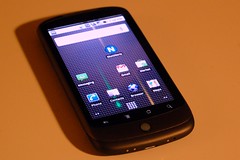
Maybe the Nexus One Wasn't Supposed to be a Hit

(19/365) Do I miss my iPhone? One week of Goog...Image by spieri_sf via Flickr

There has been quite bit of buzz about the Nexus One and its failure in the marketplace. Google's first branded smartphone has sold only 135,000 units, making it a bona fide flop. But I have to wonder if Google needed or even wanted it to succeed. While the Nexus One was Google's first smartphone, it was hardly a unique product. It was only one of a rather long and always growing line of Android handsets being built by a wide variety of cell phone vendors. In fact, I distinctly recall a lot of grumbling that with the Nexus One, Google was going to be competing directly with its own customers, the companies which had licensed the Android operating system.

And this makes the "failure" of the Nexus One fairly convenient for Google and for its licensees. Now Google can reassure its licensees, "See guys, we're not taking away sales from you!" But despite the lackluster sales, the Nexus One did raise the bar putting powerful hardware into an attractive package which handset makers still have to match. And this was likely the point of the Nexus One all along to let competitors like The Droid get the sales while the Nexus One keeps them honest and nudges them in the direction that Google wants them to go. No more underpowered Android handsets.

This wouldn't be the first time that Google has done something like this, putting out a product that was designed more to nudge rivals than to actually succeed on its own. While Google Chrome is growing in popularity and is now the basis for an ambitious new operating system, Chrome's original purpose seemed to be to assure that Google apps like GMail would run really, really fast. As a result, Chrome was a very fast browser with no extensions, no themes, and other glaring flaws. If the history of Chrome is any indication, I doubt if anyone at Google is losing any sleep over the Nexus One's sales.
Reblog this post [with Zemanta]

Tuesday, February 16, 2010

Phone Angst

People have been obsessing over their phones for a while now but I think that Palm may be taking it to a new level with webOS on its Pre and Pixi phones. Since Palm has committed to a regular upgrade schedule for webOS with big updates coming once a month along with minor updates in between the big ones. All told Palm has put out nine updates for webOS since June 2009 and buzz for the tenth update, webOS 1.4, is growing among its users.

Part of it is just the newness of the platform. Google's Android has been around for well over a year. Apple's iPhone has been around for three years. Palm's webOS has been around for just eight months and is still very much a work in progress. webOS 1.4 is expected to bring among other things support for video recording, a feature which the iPhone and Android phones have had for some time.

But I think that an essential part of all the phone angst that webOS is generating among its users is that Palm has always generated a strange dichotomy of feelings among its user community. The loyalty of the Apple user community is legendary and with the iPhone it has only grown and reached ever more cult-like proportions. Microsoft has its fanboys too but mostly its users tend to show more of a grudging acceptance than actual love. With Palm, the feel of the user community is a lot more complicated. Loyalty tends to mix with anger over perceived wrongs and missed opportunities which make members the Palm user community like one half of a separated couple—still in love but distrustful and bracing for the worst.

My own phone angst is as much a result of the platform's newness as it is to the its rapid pace of development. I jumped on the Pre early on and I love to tweak the hell out of it using Homebrew patches which I load through Preware. And the Preware people have worked hard to keep up with the pace of webOS development. As result, I sometimes have to deal with days when I have to uninstall and reinstall almost all my patches. Today was one such day as the Preware folks in anticipation of webOS 1.4 updated their patches for compatibility with it. As result I found myself staring at a phone which needed to update over forty patches. Luckily the Preware developers have worked hard to make this process as painless as possible and I clicked the "Update All" button and Preware went to work:

Photobucket

Arrrrgh!

I decide to try the "Emergency Patch Recovery" (EPR) utility. This program has been useful to me in the past by allowing me to wipe out all of my phone's patches in one feel swoop rather than having to uninstall them one by one. But first I have to uninstall my phone's theme and do a Luna Restart (a quick restart that Preware can do when you don't need to do complete reboot). So I fire up Preware again and suddenly it only has to update seventeen patches instead of forty. Hmmm, that's new. So I hold off on running EPR and hit the "Update All" button again. So I close Preware and start it again. Now only nine patches need updating. So I hit the "Update All" button yet again. And this time Preware goes through the process without a hitch.

So all's well that ends well. I find a theme that I like, install it, and do a full reboot of my phone so all the updated patches can take effect. The surprising thing was that I did all this over the course of a couple of hours as I was going about my day. Except for the Java restart and the reboot at the end, my Pre remained in use doing other things while I had Preware churning away in the background (Preware takes a long time to load its list of applications and to do updates). It wasn't perfect but it was a much smoother process than what I've experienced in the past with having to update patches one by one. So my phone angst is a little lower at the end of this day...

...and that's a good thing because I'm going to have to do this all over again later this week or the next week when webOS 1.4 comes out.

Wednesday, November 11, 2009

A Cell Carrier Goes Underground

One of the most frustrating things about a long commute can be going into a subway and losing your phone signal. So an ad like this one can be rather hearkening:

Photobucket

I have T-Mobile and my G1 has been getting better coverage on the Blue Line subway in recent weeks. Unfortunately, this improved coverage doesn't help as much for data usage. T-Mobile's 3G coverage is already relatively slow to begin with and my G1 tends to drop to EDGE speeds in a subway so checking email and web browsing can be slow. On the other hand my Palm Pre tends to lose both voice and data in the subway so T-Mobile is ahead of the game here.

Tuesday, October 6, 2009

My New Old Phone

Ever since upgrading to my Palm Pre, I haven't had much use for my T-Mobile G1. Sure, I kept it because sometimes it's useful to have a second phone but for the most part my G1 has been semi-retired. But a funny thing happened last week. Google pushed out an update to the G1's Android operating system.

I was pleasantly surprised as a rumor had been going around the interwebs that the G1's hardware was too puny for the latest Android update. More importantly, the update seems to have fixed the G1's number one problem. It has suddenly become a much faster device. It's not as fast as my Pre is on its best days but it's definitely competitive.

This is a pretty exciting development. The G1's problems had soured me on Android but now with its latest update, I'm starting to de-sour.

Classic Takes One Step Forward, Ten Steps Back

There is something of a compromise these days between gadget and software makers and their users. They put out incomplete gadgets and software and we put up with it because we think it's part of the price for getting to play with the latest and greatest. Witness the Beta label which clung to GMail for years. And it's not just with software. It took years for the iPhone to get a basic feature like cut and paste.

Similarly, Palm was able to release the Pre without certain features, like video recording, and with few native apps, asking its users to trust in its ability to update their phone. And certainly Palm has been good about updating the Pre with updates coming on a monthly, sometimes even weekly, basis. And they smartly made sure that one of the first third-party apps available for the Pre was Motionpps' Classic, an emulator which allows its users to run PalmOS apps.

For me, Classic essentially sealed the deal and made me get my Pre simply because I have used PalmOS apps like SplashMoney and HandyShopper for years and could now use them on my Pre. And while Classic isn't perfect, sometimes it crashes and freezes up and it has even crashed the entire phone on occasion. But generally it has been improving through updates.

Until now. With the recent 1.2 webOS update, Classic gained the ability to Hotsync to a desktop computer over wifi. A second update added the ability to sync over Bluetooth. And yet, I still haven't figured out how to make this sync work even though I frequently used both Bluetooth and wifi to sync my older Palm devices. This isn't too bad, I'm willing to be patient with MotionApps as they have promised to put up a FAQ to help users sync to their computers. But the thing that really bothers me is the fact that ever time I start up an app in Classic it pops up the following message:
Photobucket

Great, a nag screen for all my older apps. Perhaps MotionApps think they are helping users. Perhaps it's trying to cover itself legally. Or perhaps they just want them to badger software makers into joining Classic's certification program.

Either way it is annoying. It gets in the way of my work. And worse yet, it reminds me of Microsoft's obnoxious User Account Control in Vista. Sure it only runs the first time I run an app inside Classic but unless I keep Classic running all day long—something which given Classic's stability problems is not realistic—I will wind up seeing this message hundreds of times a day as I start and stop Classic and apps within Classic.

Another new addition within Classic isn't quite so bad as the nag screen but it is puzzling. I give you full screen mode:
Photobucket

Not much to look at right? All it does is hide the Pre's top bar, giving you exactly zero extra pixels because it merely replaces it with its own considerably less useful and less informative top bar. Now if full screen mode would collapse the virtual d-pad and buttons and give you full use of the Pre's 480x320 screen, it would be something which I've wanted since the Pre debuted. As it is implemented now, Classic's full screen mode is both pointless and useless.

For the first time since I got my Pre I'm an unhappy user. Ever since updating to version 1.2.1, my Pre has been slow and buggy and I can't pin-point the reason why. Classic is getting in the way more than it is helping. And at a time when Palm is ramping up its efforts to get more apps onto the Pre, webOS doesn't want to load more than fifty apps at a time.

Are these just growing pains for a young platform with a bright future or is it a sign that Palm has reached the limits of its ability to create something good and useful for its users. I deeply hope that its the former and not the latter.

Wednesday, September 2, 2009

The Palm Pre Gets An Onscreen Keyboard. Yay?

PhotobucketPhotobucket One of the reasons why I never got an iPhone was because I could never get used to its virtual keyboard. Still, once an onscreen keyboard became available for the Pre which was relatively easy to install, it made sense to at least give it a try. And the results were about what I had expected. While the ingenuity of the Virtual Keyboard is admirable (when tap the "Sym" button, you can scroll down and enter any symbol that the keyboard is capable of entering), it is ultimately too small to use comfortably especially in comparison with the Pre's slide out hardware keyboard.

There are also other problems. While the Pre's built-in error correction is fairly meager compared to that of the iPhone, it does come in handy for little things like putting apostrophes in contractions and automatically capitalizing letters at the beginning of sentences. This does not work with the Virtual Keyboard even though realistically, you will tend to make more typos with it than you would with the hardware keyboard—disappointing to say the least.

But the Virtual Keyboard does have its uses. It's great for pulling up recently visited pages and bookmarks in the web browser which usually come up after typing a couple of letters. It's a small thing but it is potentially very convenient since you no longer have to slide open the keyboard in order to type two or three characters.

More than anything else, the Virtual Keyboard makes me miss Palm's old Graffiti writing system. A fairly simple, easy to learn set of onscreen strokes which allowed users to enter information without any kind of keyboard, Graffiti was one of the things that got me hooked on the old PalmOS. And it would be a nice thing for some enterprising developer to try to bring to the Palm Pre.

Tuesday, September 1, 2009

As Palm Pre's App Catalog Grows, Homebrew Scene Exposes a Potential Achilles Heel

PhotobucketPhotobucket
PhotobucketIn the less than three months since its release the Palm Pre's App Catalog has grown from a little over a dozen apps to forty five. So while it's not growing as fast as its fans would like Palm seems to be moving in the right direction in terms of courting developers. Rome—and all major software platforms—were not built in a day. And for those of us who are impatient and technically inclined, there is always the Homebrew scene.

But it is the very popularity of the Palm Pre's Homebrew apps which expose a worrying concern. It seems that the Palm Pre limits the amount of space which it dedicates to storing applications. As a result, there is a limit to the number of applications which can be installed on the Pre. I have installed a lot of apps from the App Catalog and a lot of Homebrew apps on my Pre. All told, including the Pre's built-in apps, I have fifty-two apps on my Pre. And as a result, I often bump up against this storage limit and have to delete existing apps in order to install new ones.

When you consider the size of huge number of apps in the iPhone's App Store or even the Android Market, the problem with this approach is clear. There is no reason why I should be getting anything resembling an "out of memory" error on my phone when it still have three gigs of free storage space left. The original PalmOS in its heyday, had over 30,000 apps available for it and most of those apps are available for the Palm Pre thanks to the Classic emulator. So for Palm to have a limit on the number of apps that can be installed on its webOS devices like the Pre feels like a mistake which should be corrected sooner, rather than later.

Tuesday, July 14, 2009

Exanotes—The Future of Cloud Computing?

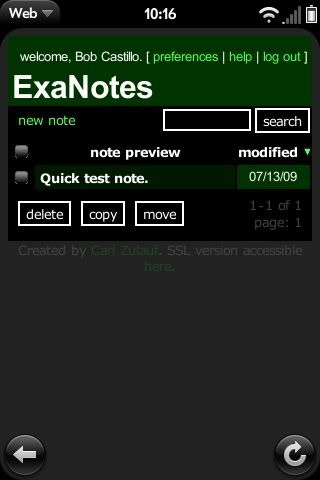
ExanotesI'm pretty happy with my Palm Pre but one of its shortcomings is in the Memos app. While it's a nice looking app, it is too simple, lacking such old-school PalmOS amenities as Categories or a List View. Worse yet, unlike the Pre's Contacts and Calendar, the Pre's Memos don't sync to anything. They are trapped on the Pre and cannot be edited on a desktop computer.

While I was able to import all of my old PalmOS memos into the Classic PalmOS emulator, again I have a situation where my memos are trapped because Classic cannot yet sync to anything. And since Classic cannot exchange cut and paste data with normal webOS apps, my memos are in a sense doubly trapped—on inside Classic semi-isolated from the rest of the Pre's data and unable to sync with the outside world.

Today I stumbled on to an interesting web-app. Exanotes is a web-based note-taking service. While it does offer a clean, simple interface what stood out for me is the fact that the service it uses 256-bit AES encryption. Good encryption is one of the things which have been sorely lacking in "Cloud Computing" applications and may help assuage the fears of people who are worried about putting their data into the hands of a third-party website.

The author of the web service has stated that he wants to create webOS app which syncs with the web service in the background. This would eliminate the need for a desktop client as any computer with a browser can be the desktop client for a user of this service and it will still be protected by the user's password (just don't click on the "Remember Me" check box if you are somebody else's computer).

My only real concern regarding Exanotes is its scalability. Will it be able to support thousands or even millions of users trying to sync to it at the same time? Only time will be able to answer that question but for now I'm hopeful. Exanotes looks like what I want to hear when people talk about Cloud Computing and I hope it succeeds.

Exanote might be worth checking out for people thinking of moving from a PDA to a smartphone.

Friday, July 10, 2009

Malware Goes Mobile

Curly threatens the bad guys with an explosive...Image via Wikipedia

Two new stories by ZDNet caught my eye today. The first is a story about a piece of malware which attacks Symbian-based phones (most Nokia phones use some version of this operating system) by pretending to be a legitimate piece of third-party software and spreads through SMS messages. This was news to me as I didn't realize that mobile malware was so common (this was the latest of many Symbian viruses and differs from them only by being more transmissable). This is an unfortunate but development arising from the fact that phones have gotten so much more powerful these days.

The second story interested me mainly because I recently wrote something about this recently. Basically, you had a group of websites which got flagged by Google as malicious because the advertising network which they use was flagged as potentially carrying malicious code. And ironically enough, the advertising network claims that their ads were clean and that only website was attacked. Either way, it all adds up to a headache for everyone involved; users, website operators, and ad providers alike.

These stories caught my attention in part because they have become so commonplace. Our happy high-bandwidth Internet with its mobile access and fancy web apps is fun and exciting but it also creates new avenues for the bad guys to attack us.
Reblog this post [with Zemanta]

Tuesday, June 23, 2009

Keyboards Compared—Treo, G1, and Pre

Size isn't everything. That's what we tell ourselves and to a certain extent it's true. At least it's true in the case of smartphones. I've compared the Treo 680's keyboard to that of the T-Mobile G1 before and now that I am migrating to the Pre, I have another comparison to make.

I am making more typos with the Pre but it's more than just a matter of the keyboard. Most of the typos that I make with the Pre are on web forums where the font can sometimes become uncomfortably small and hard to read for my aging eyes. While I can easily zoom in and out to compensate, when I do this I can no longer see everything I am writing.

Still the small keyboard is a little harder to type on than my old 680 keyboard was. Both the G1 and the Pre have a problem with causing fatigue during long writing sessions but for different reasons. While the G1's big keyboard is fairly comfortable to type on at first, the G1 itself doesn't feel quite right in my hand while I'm typing and that leads to fatigue. With the Pre the keyboard's small size is the culprit for my fatigue. So of the three the oldest machine, the 680, is the best for thumbtyping. It's smooth, domed keys feel better than the G1's flat keys and the Pre's sticky keys.

The 680's keyboard is also easier to see with their bright backlighting. Of all the phones I've played with, the Treo 650/680 had the best backlighting. The G1's wimpy backlight can actually impair its visibility in certain lighting conditions as it turns the keyboard letters a light gray color which contrasts poorly with its silvery keys. The Palm Pre represents a nice compromise between these two extremes. The Pre's backlighting is very subtle and almost impossible to see under most lighting conditions but under total darkness it works perfectly. While this may not seem like a huge achievement, it's a huge improvement coming from the G1. And even coming from the 680 the visibility of the Pre's keyboard is good as its bright white letters and orange numbers pop nicely when viewed against their black background.

One of the problems with the G1 ane Pre's sliding keyboards is the fact that they are not always available. They have to be opened in order to be used. With the G1 it's a struggle to open with one hand, it is inherently a two-handed device. The Pre by contrast slides open quite easily with one hand—you just push your thumb against the screen. As a result, one handed use—which was one of my favorite features of the Treo—is very easy with the Pre. One-handed of the G1 nearly impossible although the onscreen keyboard which was added in the Cupcake update helps in this regard. But for me virtual keyboards are more difficult and uncomfortable to use than physical ones so the G1 is ultimately a more cumbersome device for me.

Obi-Wan KenobiImage via Wikipedia

The Pre by contrast is much more elegant and this is especially true in contrast to the G1 and the 680 both of which very utilitarian in their design. It's system of gestures works very naturally and fluidly and even helps enhance the keyboard by acting as a virtual menu key for using the Cut, Copy, and Paste shortcuts. When I handle the Pre, I can't help but think about Obi-Wan Kenobi's line in Star Wars about his light saber, "a more elegant weapon for a more civilized age." I suppose this sort of statement makes me a huge drooling fanboy but gadgets are as much about the way they make their users feel as they are about helping them get work done. When I used my 680, I was frustrated by its bugs. When I used the G1, I was frustrated by its sluggishness. With the Pre, I just flat out enjoy using the device and its bugs don't bother me as much as the bugs on the 680 and the G1 did.
Reblog this post [with Zemanta]

The Dam Springs a Leak—Homebrew Apps Come to the Palm Pre

Despite the lack of an official SDK, webOS hackers have succeeded in creating homebrew apps which can be installed on the Palm Pre through email. While at this point it's more a security hole that needs to be plugged than an actual way to install applications, the upside is that it's still an exciting development that brings the Pre one step closer to getting a wider variety of apps.

Friday, June 19, 2009

Palm's Angsty Update

Due to heavy thunderstorms in the Chicago area, a large swath of the city and suburbs were plunged into darkness, including my own home which was without power for about four and a half hours. Without TV and without DSL Internet access, I turned to my phones with their 3G connections for information. Thanks to Palmdoc's Twitter feed, I learned that there is a new update for my Palm Pre which breaks the Classic emulator. So I'm sitting in the dark with only a flashlight to illuminate me, my Pre's battery is down to less than 50%, and I could break one of the applications which I depend upon the most. Naturally I had to try it.

And sure enough, when the update installed and the Pre restarted, Classic crashed. But I wasn't too worried. I'd gone over the Treocentral thread which reported the problem carefully and thought that I had a good idea of what was going on so I connected my Pre to as a USB drive and cleaned out the ClassicApps directory, moving everything to my netbook. When I disconnected and started Classic, it came up just fine.

Interestingly enough following the 1.03 Pre update, Classic now reports its version as "1.1.05." It looks like there was an undocumented update for the Classic bundled in the Pre update. Which explains the crashes and the subtle changes in Classic's behavior. For one thing it is a little "slower" to start up in that the MotionApps logo takes longer to fade away even if though it is still possible to scroll through the Launcher and launch apps while the logo is displayed. Also, Classic now informs me that none of my apps is "Classic certified." (Tapping on this message launches the browser and displays Classic's web page but does not appear to offer any solutions at this time.) I'm not too worried about this as they all continue to work properly.

Classic has also added a Preferences item with a number of options. "Emulation Mode" allows you to choose from "Games," "Normal," "Fast," and "Safe" modes. Fast appears to be the default. Games mode enables sound in Classic but warns that it is very experimental and could cause Classic to crash. And indeed it does tend to crash once it has been restarted a few times. Normal also enables sound but toggles off Classic's "Turbo" mode. (Turbo mode is probably the reason why MotionApps claims that Classic is twice as fast as real PalmOS devices.) The speed difference between Normal and Fast modes are negligible but turning on sound support tends to cause Classic to crash. Safe mode turns off both sound and Turbo mode. In general the default Fast option seems to work best on with Classic.


Classic also has a new directory structure. (Which perhaps is what caused all the crashes in the first place.) It mimics a Palm SD card more closely by creating a PALM folder with Launcher and Programs folders underneath it. Notice from the screenshot that there are now two Install folders. The one underneath the Launcher folder is the new "Install" folder for Classic. You put .prc and .pdb files here if you want Classic to import them when it starts up. The other Install folder, the one directly underneath the ClassicApps folder is the old install folder and will cause Classic to crash if it is used. Naturally Classic dutifully recreates it if you delete it....

If you avoid the first Install folder, you should be fine but MotionApps would be wise to delete it altogether in order to avoid confusing users.

Update: Precentral reports that MotionApps has put up a blog post and FAQ to address the issue.

Classic—Bringing New Life to Some Old Apps

I checked the Palm Pre's App Catalog today and it had the same thirty applications that have been there for at least a week. Thirty apps. That's one ten thousandth the number of applications available for the iPhone and about one thousandth the number available for Android phones like the T-Mobile G1. But all is not lost for the Pre. One of the apps in Palm's App Catalog, is MotionApps' Classic PalmOS emulator. This app makes it fairly easy to run many of the thirty thousand apps available for older PalmOS devices on the Palm Pre.

But how easy is it to run PalmOS apps using Classic really? Since I've been a Palm user for over ten years, I was eager to learn. While the results are somewhat mixed, I've come to the conclusion that Classic is definitely a viable solution for Palm enthusiasts trying to convert to the Pre.

The Classic screen resembles that of a Treo smartphone—well, really it resembles the Palm Centro with its stacked, paired buttons and big d-pad. Unfortunately, Classic is locked into a 320x320 interface, using the rest of the screen for its virtual buttons. On the list of improvements that I want to see in Classic, being able to take advantage of the Pre's 480x320 screen is number one.

Number two is being able to copy and paste between other webOS applications. Classic handles copy and paste among applications that run inside it just fine. In fact in some ways it's even better than the implementation of copy and paste in webOS as a whole. But you can't for example cut a block of text from the PalmOS Memos app in Classic and paste it into the modern webOS Memos app.

Classic is also missing sound and codec support. This makes games somewhat less exciting and is a disappointing omission.

Classic also has problems with stability. It will sometimes throw up a Windows like BSoD which asks you to close the window and try again. Sometimes it will even crash the Palm Pre itself, causing it to reboot. Fortunately, these crashes are rare and have become even more rare since MotionApps updated Classic to version 1.0.2. MotionApps also has a separate Rom Update application which helps fix some bugs when it is installed inside Classic. We sometimes forget how unstable and cranky the PalmOS had become in its final years and some of these problems have definitely been carried over into Classic. But again, these problems are rare. Generally speaking most apps run faster and better under Classic than they ever did under the old PalmOS. MotionApps claims that PalmOS apps will run twice as fast under Classic as they would on a native PalmOS device and that seems about right. Everything in Classic seems to happen instantly and that is definitely a good thing.

While Classic does emulate an SD card treating its "ClassicApps" folder on your Pre as if it were an SD card, I've found that most of its crashes can be traced to a conflict between the app its trying to run and Classic's SD card emulation. It's much easier to "install" applications into Classic by putting them into a folder, appropriately named "Install" which Classic creates under its "ClassicApps" folder on your Pre. In the case of older applications which don't support loading from an SD card this is your only option for running them anyway. Also apps which consist of a .prc file with several .pdb data files tend to run better and more stable when they are installed instead of being run from Classic's virtual SD card. This causes a slight start up delay as Classic imports these files but the increased stability is absolutely worth it.

While Classic does not at this time support PalmOS Hotsync (MotionApps claims that it is looking into adding it in the future), it does support a Hotsync ID. This allows users to use software which they've bought and registered over the years without buying it again.

Importing PIM data is a little more involved than importing third party applications. MotionApps has fairly detailed instructions on how to do this but the gist is that you need to use a third party file manager like Filez on your PalmOS device to move the PIM databases to an SD card, copy them to your computer, and copy them again to the "Install" folder on your Pre. Once they are on your Pre, the Classic PIM apps look just like the PIM apps on any PalmOS device. If nothing else they are a good way of handling your imported data while waiting for better native Pre apps to come along.

Overall, Classic is a good way to ween PalmOS enthusiasts off their old apps while plugging some software holes in the Pre App Catalog. Buying Classic was fairly easy. I went to MotionApps' website and bought it and the next time I ran Classic it already knew that it had been registered. While this process is easy, it is interesting to note that the purchasing process for buying apps on Android is even more seemless—if you've ever bought anything through Google, the Android Market has your information and that makes purchases instantaneous.

Here are the applications which I've tried to run in Classic along with brief summary of the degree to which I succeeded:

AcidFreecell—Crashes when run from the ClassicApps folder. Generally stable (still occasionally crashes but not often) when installed into Install folder.
AtomSmash—Not compatible with Classic. Crashes under all circumstances.
Bejeweled!—Runs well in Classic.
BellTime—Runs well but without sound support, alarm clock apps are essentially useless.
BibleReader—This is a pretty good application for showing off Classic's strengths and weaknesses. It crashes when run from the ClassicApps folder and runs well when installed in the Install folder but it cannot see its databases unless they are also installed in the Install folder. Once everything is installed properly, BibleReader runs instantly in Classic—faster in fact than on any PalmOS device which I've ever used it with.
Bubblet—Runs well in Classic.
Converter—runs well in Classic.
D2RuneWords—Crashes when run from ClassicApps folder. Runs well when installed in Install folder.
DateBk5—Runs well when installed in Install folder but floating events require no longer "float" as they require Classic to remain running at all times.
Diddlebug—Runs well when installed in Install folder but requires more precision than is possible with the human finger.
Eat Watch—Runs well when installed in Install folder.
eReader—Runs but cannot see books unless they are installed in the Install folder.
FreeJongg—Runs but distorted graphics make the game unplayable.
HandyShopper—Runs well when installed together with its databases in Install folder.
JFile—Runs well when installed together with its databases in Install folder.
Keygen—Runs well.
Mass Transit—Runs well
Noah Pro—Runs well when installed together with its databases in Install folder.
PalmFiction—My favorite ebook reader on PalmOS runs very well under Classic, viewing books no matter where they are in Classic's directory structure. If only Classic supported 480x320 resolution.
PsMemo—Runs well.
SplashMoney—Runs well when installed together with its databases in Install folder.
T-Crisis—Runs well but virtual D-pad makes control difficult.
Thesaurus—Runs well when installed together with its databases in Install folder.
TopSecret—Runs well when installed together with its databases in Install folder.
WordPop!—Runs well.
USDA Foods—Runs well when installed together with its databases in Install folder.